Product tour
Plan the work.Track it to delivery.
Keep, from the first requirement to the project review: planning, work, the journal, vaults, feedback, time, reports and insights.
A project is more than its task list.
Plan
Define the outcome and the delivery window.
Define what you need to deliver, organize the parts of the product and choose the next delivery window. Requirements, modules and cycles give everyone the same starting point.
Start with tasks when that is enough. Bring in the richer planning model as the project grows.
- WhatRequirement
v3A report customers can take away
PDF and CSV match the report.
- Where
ModuleReporting & exports
- WhenCycle
v0.9Pilot release
Read the walkthrough
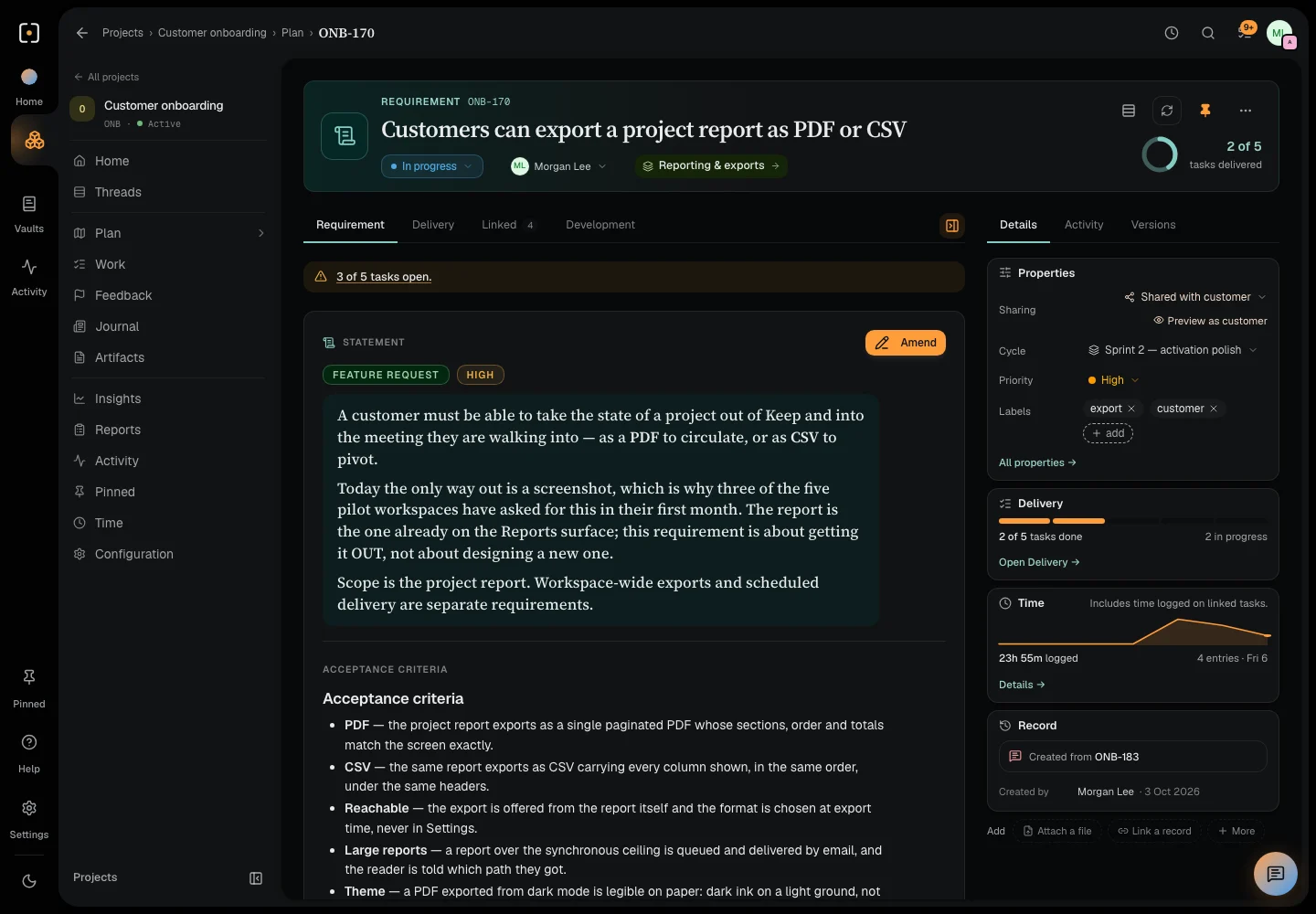
A Keep requirement page: a band with its title, status, owner and delivery, the statement and acceptance criteria, and its details in cards beside it; then its links, delivery tasks, versions, modules and cycles.
- Browse the requirement stream and open the export feature request.
- Read its statement and acceptance criteria, with its details in cards beside it.
- Open Linked to see how it connects, then its Delivery tasks and Versions.
- See the three modules in Plan, then the cycle cards with every kind shown.
Recorded in Keep with sample data. Silent video.
Define the outcome
Requirements hold the statement, acceptance criteria, owner and priority. Keep amendments as versions, connect delivery tasks, and distinguish enhancements, feature requests and change requests.
Give it a home
Modules organize a capability or product area. Group related requirements and work so a team can see the part of the product it owns.
Choose the delivery window
Use sprints, phases, milestones or versioned releases. See dates, status, progress and the tasks included in each cycle.
Work
Track tasks, bugs and chores from open to done.
Turn the plan into tasks, bugs and chores. Give the work an owner, make blockers visible and keep each handoff connected to the reason it exists.
Choose the view that helps today: a focused list, a Kanban board or a Gantt timeline.
Your agent can pick up the work and leave the handoff. Your team sees what changed, even when you haven’t opened Keep.
Read the walkthrough
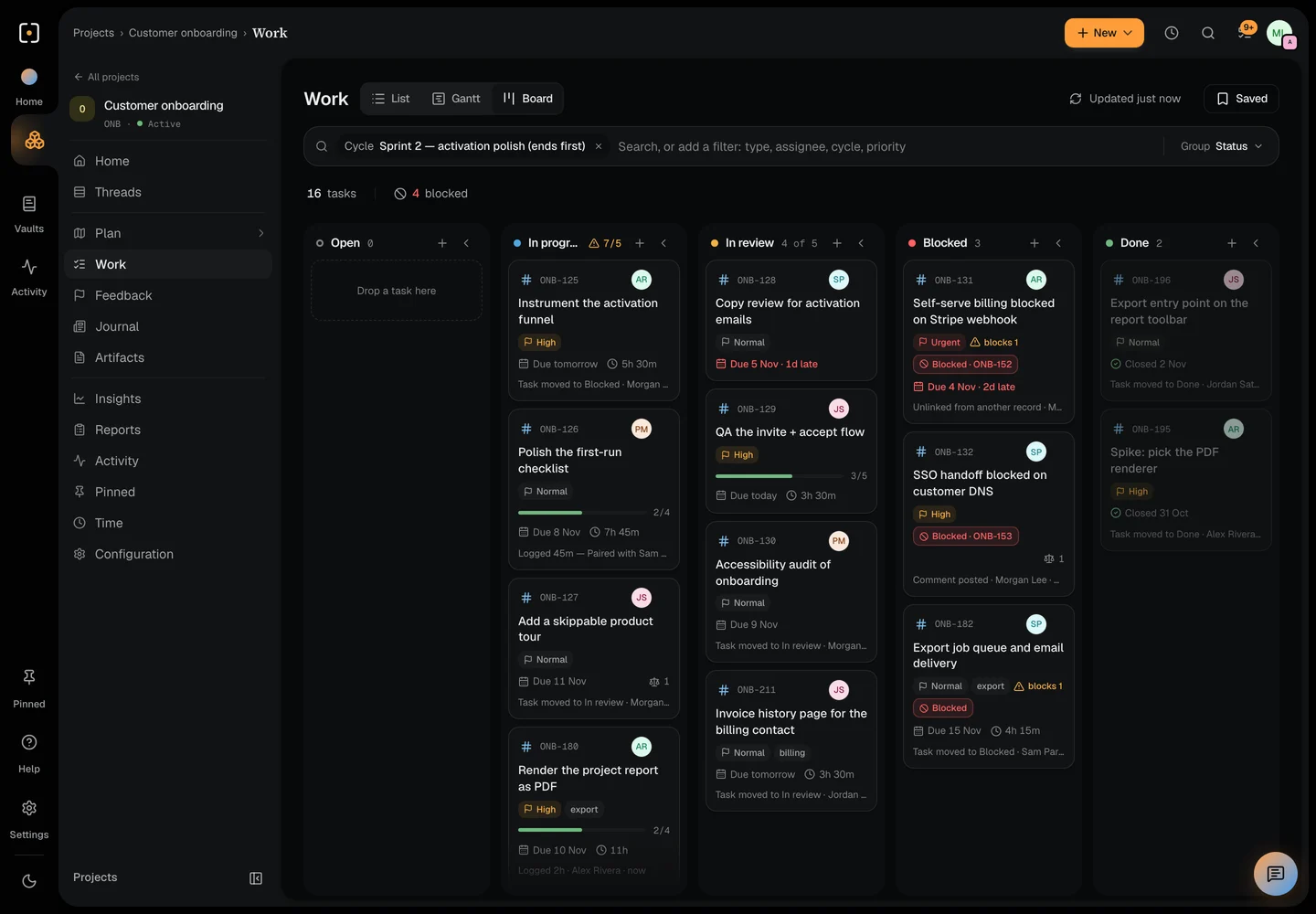
The Keep Kanban board showing in-progress, review, blocked and done cards for Customer onboarding.
- See the work for the current cycle across status columns.
- Read owners, due dates, subtasks and blocking records directly on the cards.
- Open a quick preview of the PDF export task, with the same band as its page.
Recorded in Keep with sample data. Silent video.
Choose your view
Move between list, Kanban and Gantt. Filter the work, open a quick preview and keep the wider project in view.
Make the next step clear
Tasks, bugs and chores have owners, priorities and due dates. Subtasks and blockers explain what can move and what is waiting.
Keep the handoff connected
Trace a task to its requirement, cycle and supporting records. Your team and connected agents work with the same project context.
One clear page for every record
Each record opens on a page shaped for its kind: a band with its title and the one fact that matters, the record itself, and its details in cards beside it. Linked shows how it connects, then lists every link. On a phone the record comes first, with its details on their own tab.
Mobile
The full workspace, designed for mobile.
The same projects and records as in the browser, with a layout built for one-handed use.
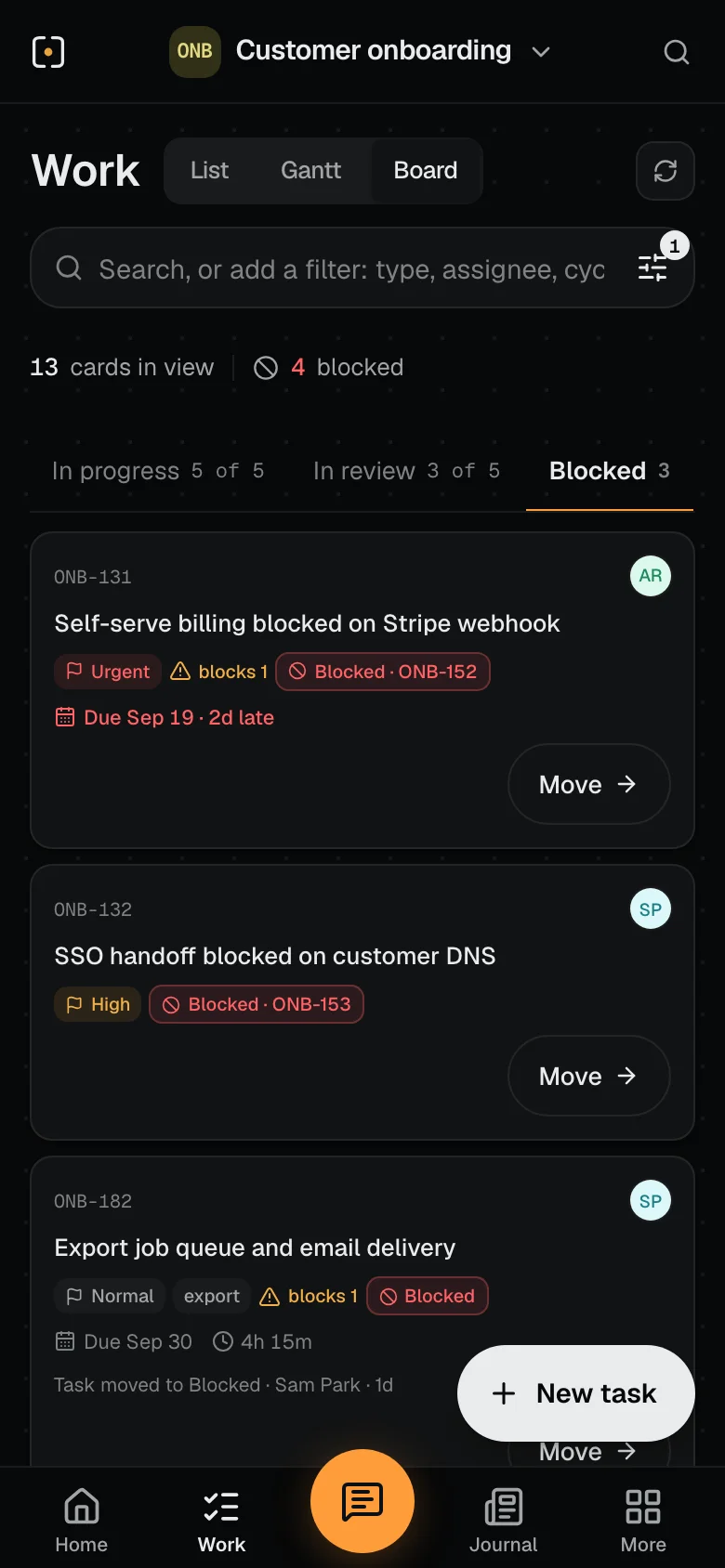
The board on a phone
The board gives you one lane at a time, each card with the move it needs. Check your queue, change a state, leave a reply or log the time you just spent.
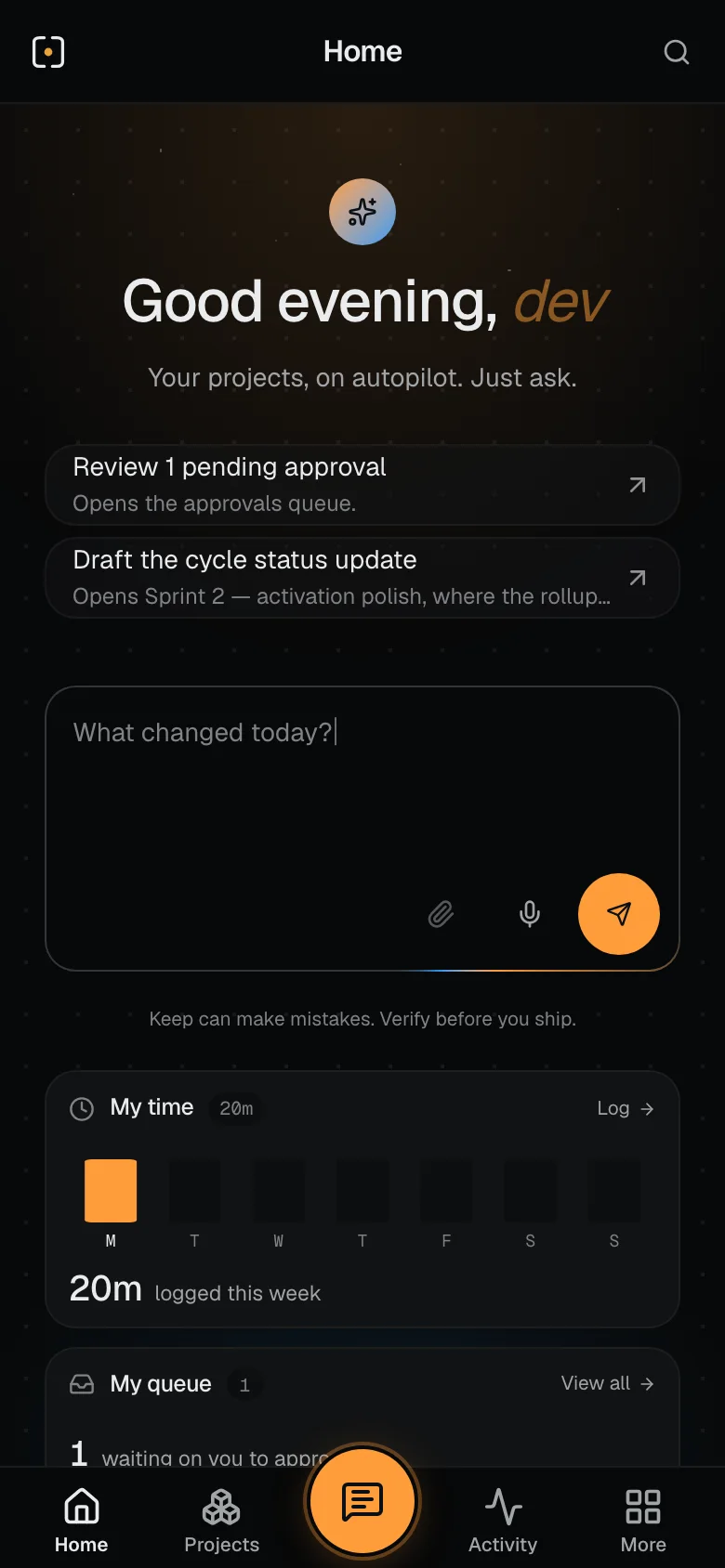
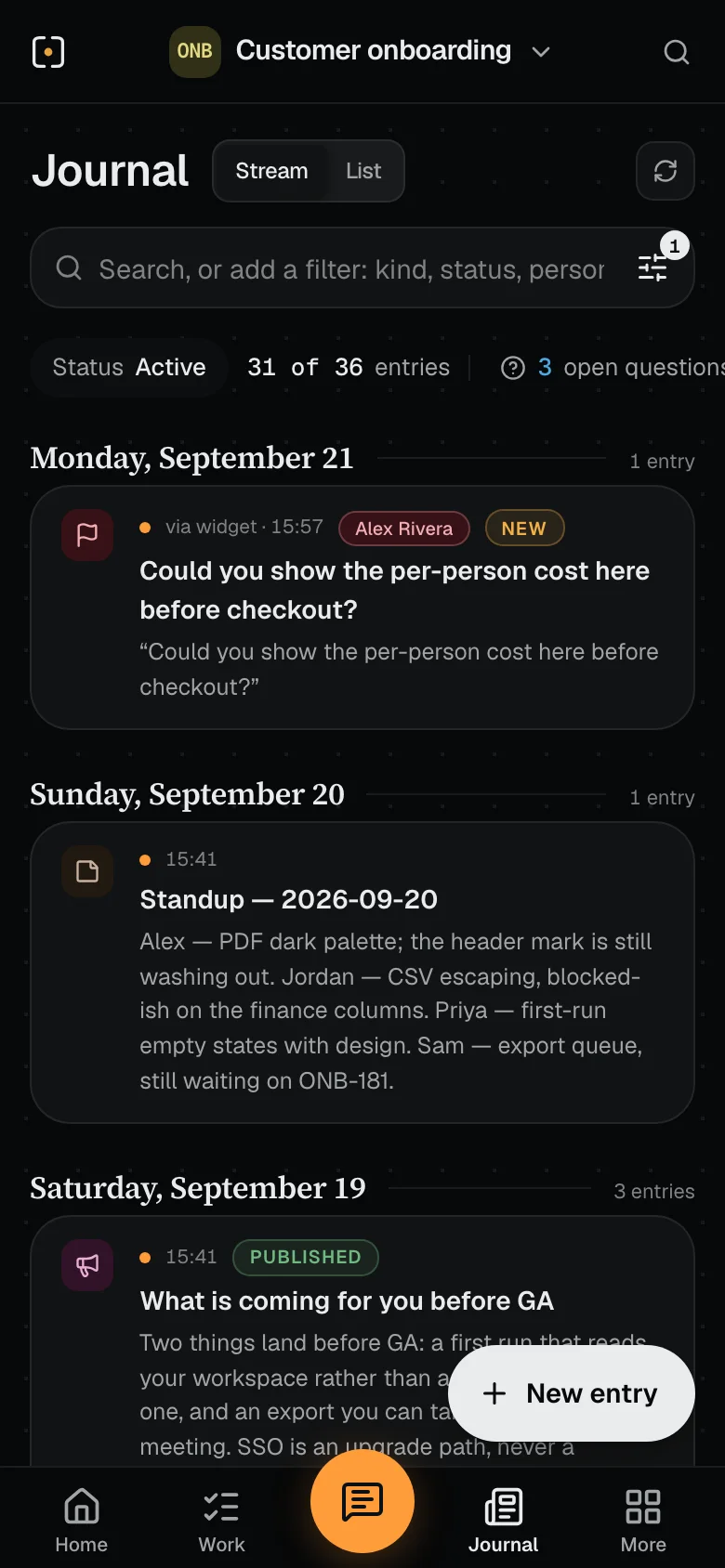
Review your queue
The decisions and questions waiting for you, and the hours you have logged.
Update tasks
Change a card’s status, reply or log time.
Follow the journal
Decisions, updates, questions and feedback, grouped by day.
Journal
Record decisions next to the work.
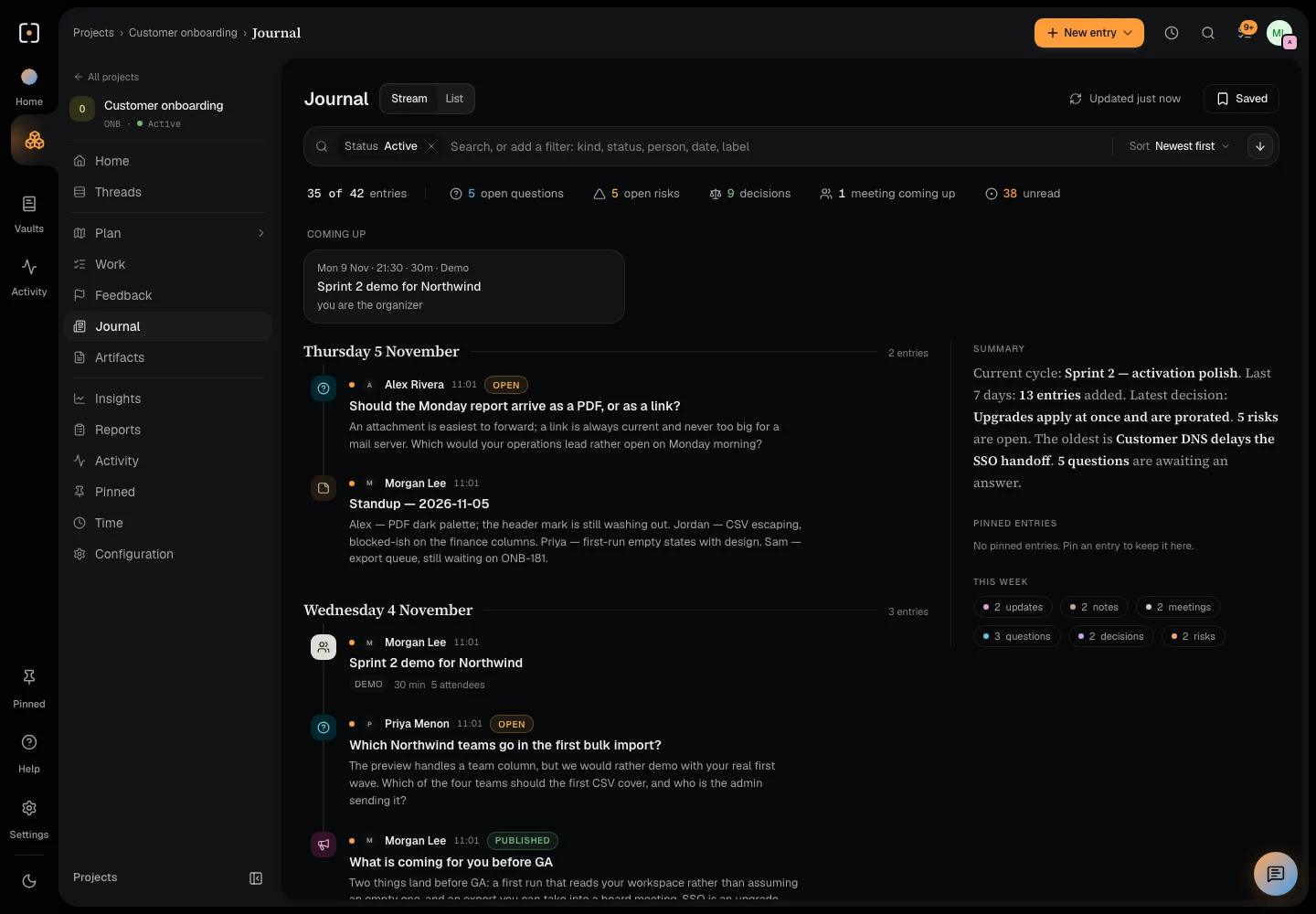
A project is more than its task list. Keep the decisions, notes, questions, risks, feedback and updates that explain how you got here.
Stream turns those distinct records into a readable story, with the connections still attached.
- Note
- Decision
- Update
- Feedback
- Question
- Risk
- Meeting
NoteThe customer needs a complete export.
DecisionInclude PDF and CSV in the pilot.
QuestionWhich columns should be included?
UpdateThe export is ready for review.
Read the walkthrough
Journal Stream shows dated updates, notes, meetings and questions beside a summary of the project.
- Read the project as a dated stream of updates, meetings and questions.
- Open the export decision: what was decided comes first, then its context and the options considered.
- Open Linked to see the meeting it came from, the requirement it shapes and the risk it answers.
Recorded in Keep with sample data. Silent video.
Different records, different jobs
Notes keep the observation. Decisions keep the choice and rationale. Updates share progress; questions and risks keep the unresolved work visible.
Read the story as a stream
Follow dated entries, open the detail and explore linked records. A decision, risk or question reads as one page, with its outcome beside it. Feedback and meeting outcomes stay alongside the work they explain.
Vaults
Documents and files, versioned and shareable.
Give documents, files and finished work a place to live. Keep artifacts in a vault of their own or bring them into a project.
Share the work with the people who need it, including people who do not use Keep.
Explore documents and sharingRead the walkthrough
Customer onboarding artifacts displayed as document, file, link and embed preview cards.
- Browse documents, files, links and embeds in the project.
- Open the export specification and its document preview.
- Name a share link, keep its seven-day expiry and create it.
Recorded in Keep with sample data. Silent video.
More than attachments
Write Markdown documents, upload PDFs and other files, save links, or preview HTML and interactive pages. Artifacts can live in a vault or belong to a project.
Keep it organized
Use vaults, folders and document versions to keep the working material and finished output together. Compare two versions with the changes marked, and download a document as a .md file.
Share with the right people
Create named links with optional passwords and expiry, and revoke them when needed. A public artifact link needs no Keep login. Customers can comment on the records they can read.
Feedback Agent
Collect website feedback with screenshots and context.
A visitor points to an element, annotates the screenshot and sends feedback from your website. No Keep login needed.
Your team gets the page context and the next conversation. The visitor can return to their own report and status.
See the widget and installation guideFeedback“Could you show the per-person cost before checkout?”
A weekend away. From $240 per person.
Read the walkthrough
The real Keep Capture annotation editor with a box around a price on a fictional booking website and an idea ready to submit.
- Open Keep Capture on the sample Fieldwork website.
- Select the price on the page, then draw a box on the screenshot.
- Describe an idea: show the per-person cost before checkout.
- Send it to the project and return to “Your feedback on this page” to see its status.
Recorded in Keep with sample data on a fictional website. Silent video.
Capture where it happens
Drop the widget into your website. Select an element, capture the page and annotate the screenshot so the team can see the issue.
Turn a comment into context
Send a bug, idea or question without a Keep login. Page context and the screenshot arrive with the report.
Keep the reporter in the loop
The reporter can revisit their own submissions and status in the same browser. Your team can connect the requirement or follow-up work.
Time
Track time against the work.
Open Time to see your week, record by record and day by day. See where the hours went and follow an entry back to the work.
Log time yourself or let a connected working session record it. Your own time, your team’s and each project’s have a view.
Read the walkthrough
Keep’s Time page on My time: the week’s total against a full week, and a grid of records by day with a total for each day.
- Open Time to see your week: each record you logged on, day by day.
- Open the Log time widget from the top bar without leaving the page.
- Switch to Entries for the dated list, then to Summary for hours by week, project and requirement.
- Open Team to see each person’s week on the projects you manage.
Recorded in Keep with sample data. Silent video.
Your week, at a glance
See your weekly total against a full week, each day’s hours and the records you spent them on. The clock in the top bar logs time from any page.
Log it, or track a working session
Enter a duration and note against a record. Time an assistant logs on its own estimate stays awaiting confirmation until you confirm it.
Go from totals to entries
Move between weeks, filter the entries and open the record behind one. If you manage a project, Team shows each person’s week; the Time report gives a broader reading where your permissions allow.
Reports
Project reports for every review.
Understand progress, revisit decisions, review risks and account for time. Reports bring the project’s records into a form you can read, discuss and keep.
A current view helps you act now. A captured project report keeps the reading from that moment.
- Project reportOverview · Details
- Decision logChoice · Rationale
- Risk registerRisk · Response · Outcome
- Time reportPerson · Record · Cycle
Read the walkthrough
The real Keep Project report with progress, work in flight, blockers and a previous-window comparison.
- Choose from Project report, Decision log, Risk register and Time report.
- Open the Project report and select Last 7 days.
- Switch from Overview to Details, then return to the overview.
- Open the separate Time report to explore logged work.
Recorded in Keep with sample data. Silent video.
A report for the conversation
Choose Project report, Decision log, Risk register or Time report. Each gives a different reading of the same underlying project.
Keep a point in time
Choose a reporting window and move between Overview and Details. Capture a project report as an artifact when you need a record of that reading.
Follow the evidence
Read the records behind progress, decisions and risks. The Time report groups logged hours by person, task, requirement and cycle, with entries available as CSV.
Insights
Charts linked to the underlying records.
See what is moving, what is waiting and how work is distributed. Charts give the overview; the records behind them give you somewhere to go next.
Explore Work, Journal and Artifacts, with a time range for the charts that measure change.
RisksQuestionsFeedbackDecisions
Read the walkthrough
Keep Insights shows tasks opened and closed, tasks by status, new records by kind and work by cycle, with tabs for Journal and Artifacts.
- Read Work charts and change the time range.
- Switch to Journal for its record mix and open risks.
- Explore Artifacts to see artifact activity.
- Return to Work and open the tasks-by-status breakdown.
Recorded in Keep with sample data. Silent video.
See what is moving
Compare tasks opened and closed, the status mix, work by cycle and cycle burndown. Change the time range for time-based charts.
See what needs attention
Explore Journal and Artifacts alongside Work. Open risks, questions, feedback and decisions stay visible in the project’s summary.
Open the records behind a chart
Supported chart cards open a detailed breakdown. Move from the overview to the items that need a conversation or a next step.
Ask from your AI assistant
Most actions in Keepare available from your assistant.
Capture work, catch up, account for time and find records by asking. Each request reads and writes the project’s own records, inside your permissions.
Create requirements, bugs and tasks.
I have an idea: let customers export the per-person cost before checkout.
Opens a requirement in the project.
ONB-188OpenShow the per-person cost before checkout.
ONB-190OpenThe export drops the last column
ONB-191OpenReview the invite flow
Sprint 2ReadSprint 2, activation polish. Thirteen cards in view: three in review, two done, four of them blocked.
ActivityReadRecent activity for Alex Rivera, read from the project’s own records.
ReleaseReadThe release cycle and its notes.
ONB-180ReadRender the report as PDF: eleven hours logged so far, the last two by Alex Rivera.
TimeReadTime entries by person, on the export work.
ONB-126Logged45m logged against your own week.
Doc · v3ReadThe export spec, at its current version.
LinkSharedProject report, share link, expires Friday.
UpdatePublishedThe pilot is ready for review.
Read from the project’s own records, not from a summary someone wrote
Connect your AI client to the project.
Work from your AI client with the project context your team sees. The connection gives your agent the same access you have, and no more.
Install and connect KeepYour AI clientCoding or conversation
Choose your client
Use a compatible coding or conversational AI client. The connection guide covers Claude, Claude Code, Cursor, VS Code, ChatGPT, Codex, Gemini CLI, Antigravity, Devin Desktop and Zed.
Your permissionApprove the connection
Authorize your workspace
Sign in and approve the connection. Your existing permissions determine the records and actions the agent can access.
Your projectShared records and context
Bring context into the conversation
Ask your agent to inspect a requirement, pick up a task or save a document.








Not only questions: file an idea, log a bug, open a task, see where someone’s hours went, or share a document with a link. Almost anything you do in Keep, you can do by asking the assistant you already talk to. It acts as you, with only your access. Keep’s own assistant in the app works the same way. See what that looks like
Free trial · 14 days
Bring a real project.
Bring your team and your AI agents into one shared workspace. Sign in to your workspace or start a free trial.
Trust & security
Dedicated workspace data. Access you control.
Explore Keep’s dedicated tenancy, data isolation, security controls and Cloudflare foundation.