

PROJECTS, DOCUMENTS & COLLABORATION

Your team. Your agents.
One shared workspace.

Bring your plans, tasks, documents and feedback together. Work in Keep or through your AI tools, with the project context your team needs.

Get started Explore the productPrivate beta · Sign in or request access.
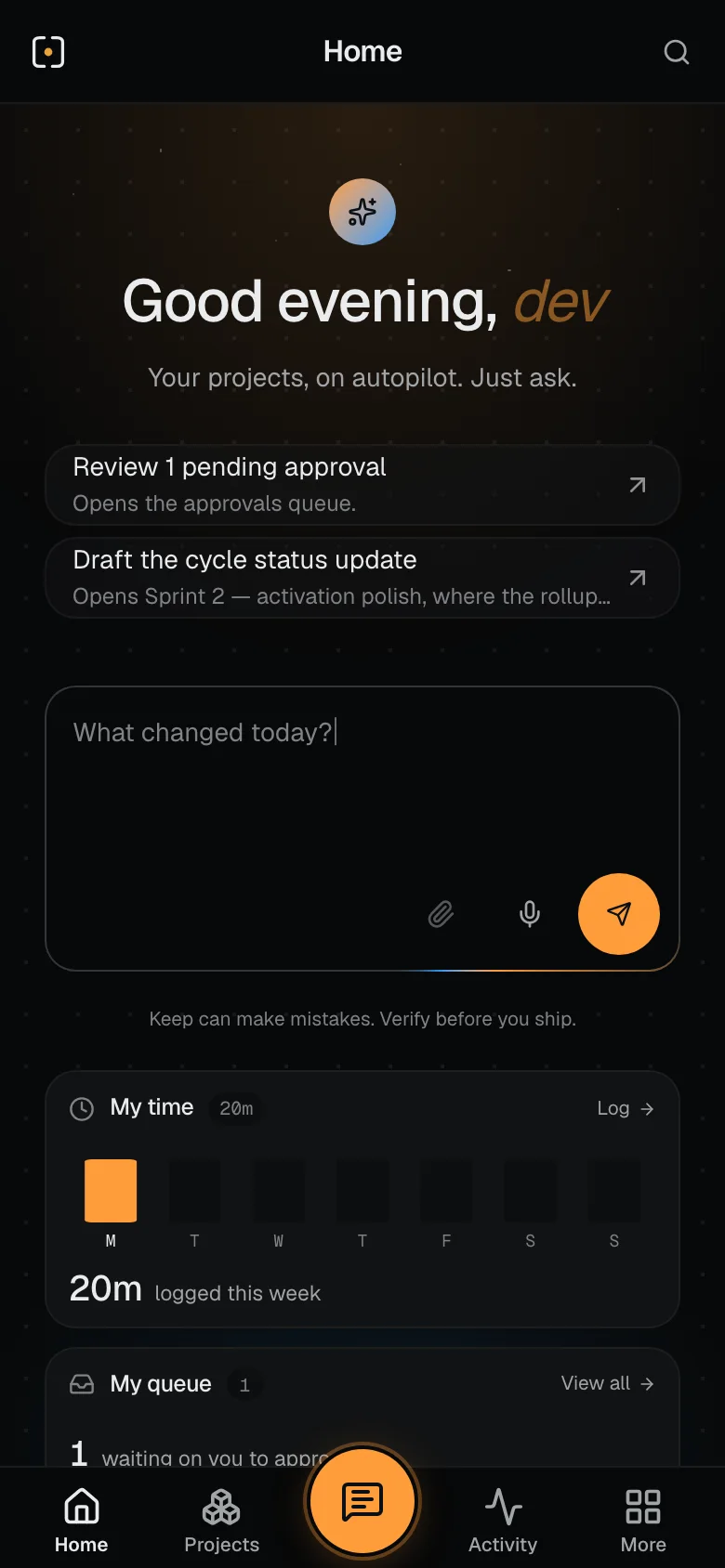
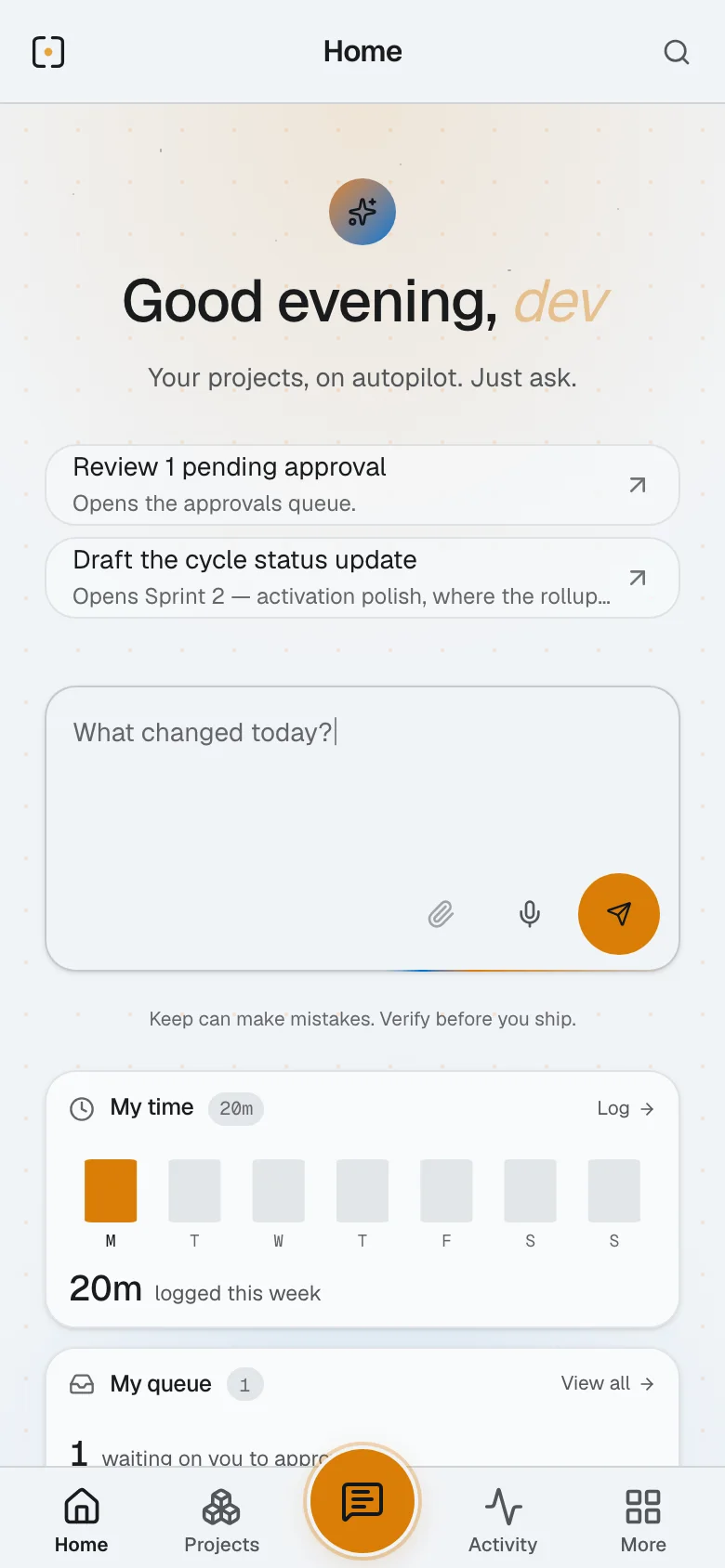
The Keep Home screen in Keep’s dark theme, in a sample workspace: a welcome greeting, My time and today’s work, and the projects, activity and attention that need you.
For coding agents. For everyday conversations. For the way you work.Explore supported connections
A PLACE TO START YOUR DAY

A hello.
And a little clarity.

Your time, your queue and the work that needs you. Keep’s Home brings the important pieces around one place to start a conversation.

A PLACE FOR THE WHOLE PROJECT

From the first idea
to the work you’re proud to share.

Take the full product tour
01 / PLAN

Make the outcome clear.
Give the work a plan.

Requirements define what to deliver. Modules organize the parts of your product. Cycles set the window for getting it done.

Requirements, modules and cycles.

See how a plan comes together
A plan with a purposeCustomer portal
CPL-12In progress

Give customers a report they can take away.

Sam · just nowRequirement · v3

A complete export for the next customer review.

The export includes every report column.
MODULE

Reporting & exports

The part of the product this work belongs to.

Shared context
RELEASE

Customer portal pilot

Sep 15 – Sep 29

6 of 8 done75%
SprintsPhasesMilestonesReleases
02 / WORK

Know what’s next.
See what’s getting done.

Tasks, bugs and chores. Clear owners, progress and a next step — as a list, a board or a timeline.

A list, a board or a timeline.

Explore your ways of working
Customer portal · WorkPilot release

In progress 2

CPL-16In progress

Polish the first-run checklist

SSam · just nowTask · Due Fri

In review 2

CPL-13In review

Build the complete CSV export

SSam · just nowTask · Due Thu
CPL-22In review

Archive the pilot test data

SSam · just nowChore · Due Fri
The agent left the handoff.

CSV headers checked. Changes and next steps recorded.

Ready
03 / JOURNAL

Keep the reasons
behind the work.

Notes, updates, feedback, questions, risks and meeting outcomes — beside the work they explain.

Notes, updates, feedback and questions.

Explore Journal and feedback
The story so farCustomer portal

The pilot is ready. Here’s what comes next.

Capture the conversation, while it’s still fresh.

Include the complete export in the pilot.

Linked to CPL-12 · Export requirement

Export ready for customer review.

04 / ARTIFACTS

Everything you make.
A home of its own.

Documents, files and everything your team creates — with versions, collections and sharing built in.

Documents, files, versions and sharing.

Explore artifacts and sharing
Launch collection4 artifacts
Document v3
THE CUSTOMER PORTAL

A better first day.

Everything a new customer needs to get started, in one place.

A clear next step
A team ready to help
Customer briefWritten in Keep · Markdown
PDF
LAUNCH / 01

The pilot.
Ready for review.

Customer portal · September
Pilot overview.pdfUploaded file

Welcome page

HTML · previewable artifact

Discovery notes

Google Docs · connected embed

Ready to share.One link for the people who need it.
KEEP GOES WHERE YOU GO

Built for a phone,
not shrunk onto one.

It is the same workspace you open in a browser, laid out for one thumb.

Keep Home on a phone in a sample workspace: a greeting and a box to ask for what you need, two suggestions — review one pending approval, draft the cycle status update — then My time with 20m logged this week and the start of My queue.
Home
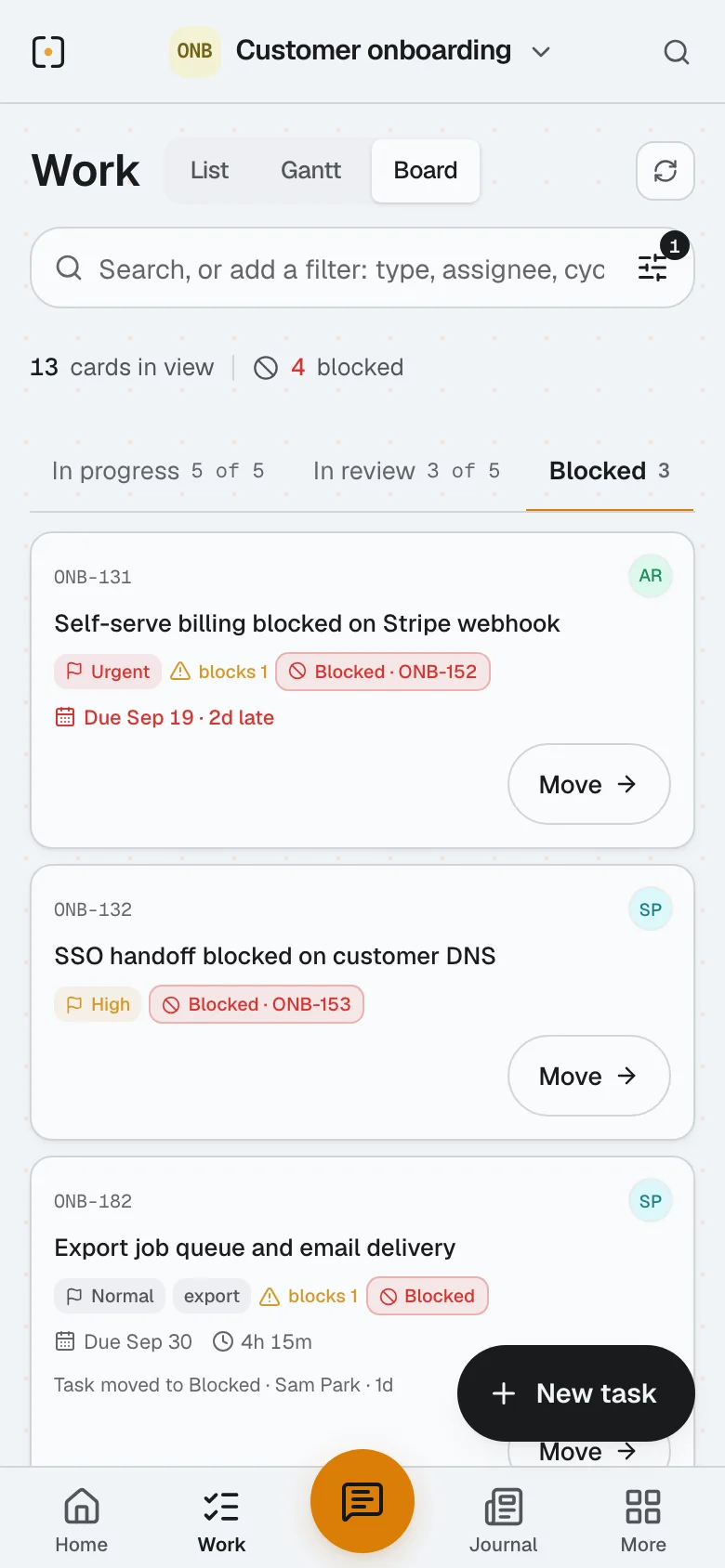
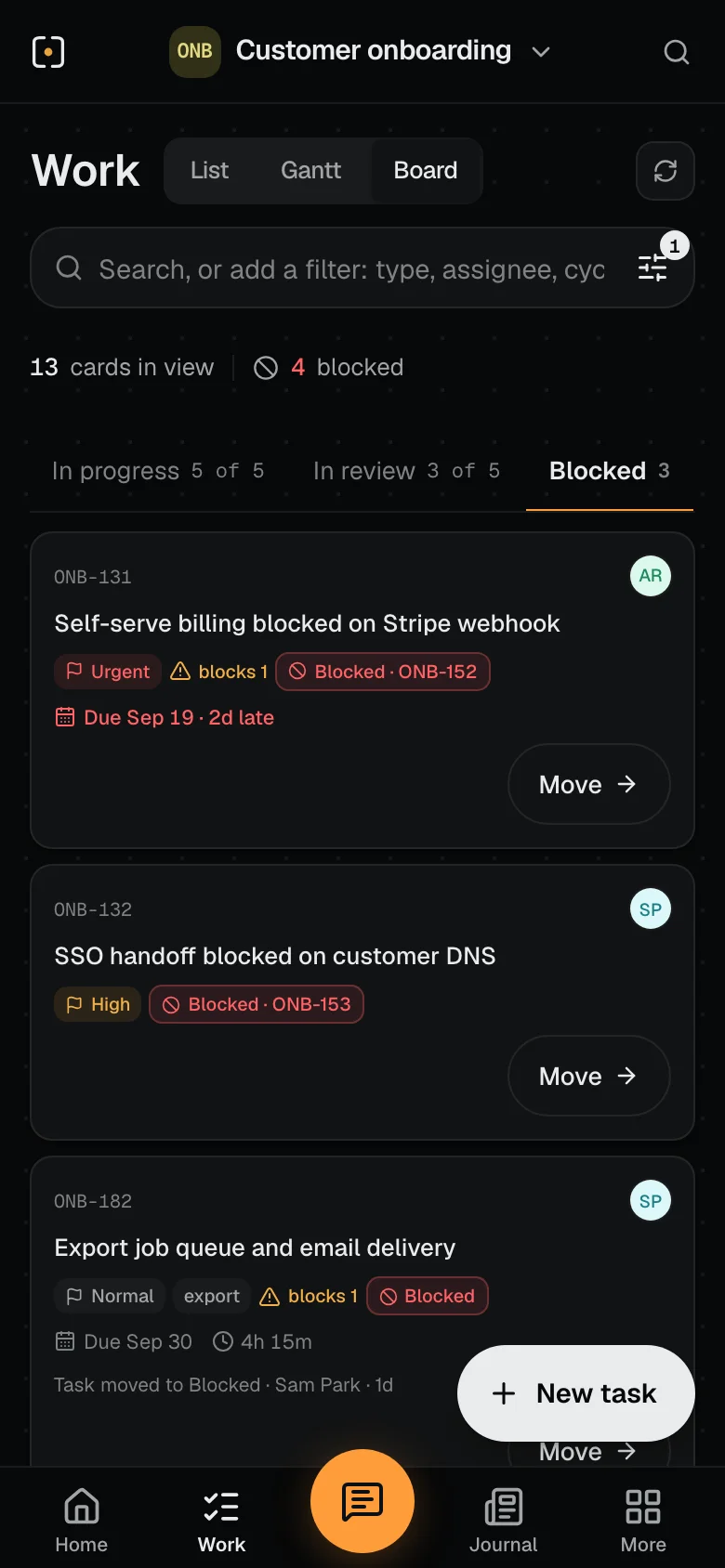
Keep’s Work board on a phone in a sample workspace, showing the Blocked lane of Customer onboarding: thirteen cards in view, four blocked, and three cards — self-serve billing blocked on the Stripe webhook and two days late, an SSO handoff, and the export job queue — each with a Move button.
Work · Board
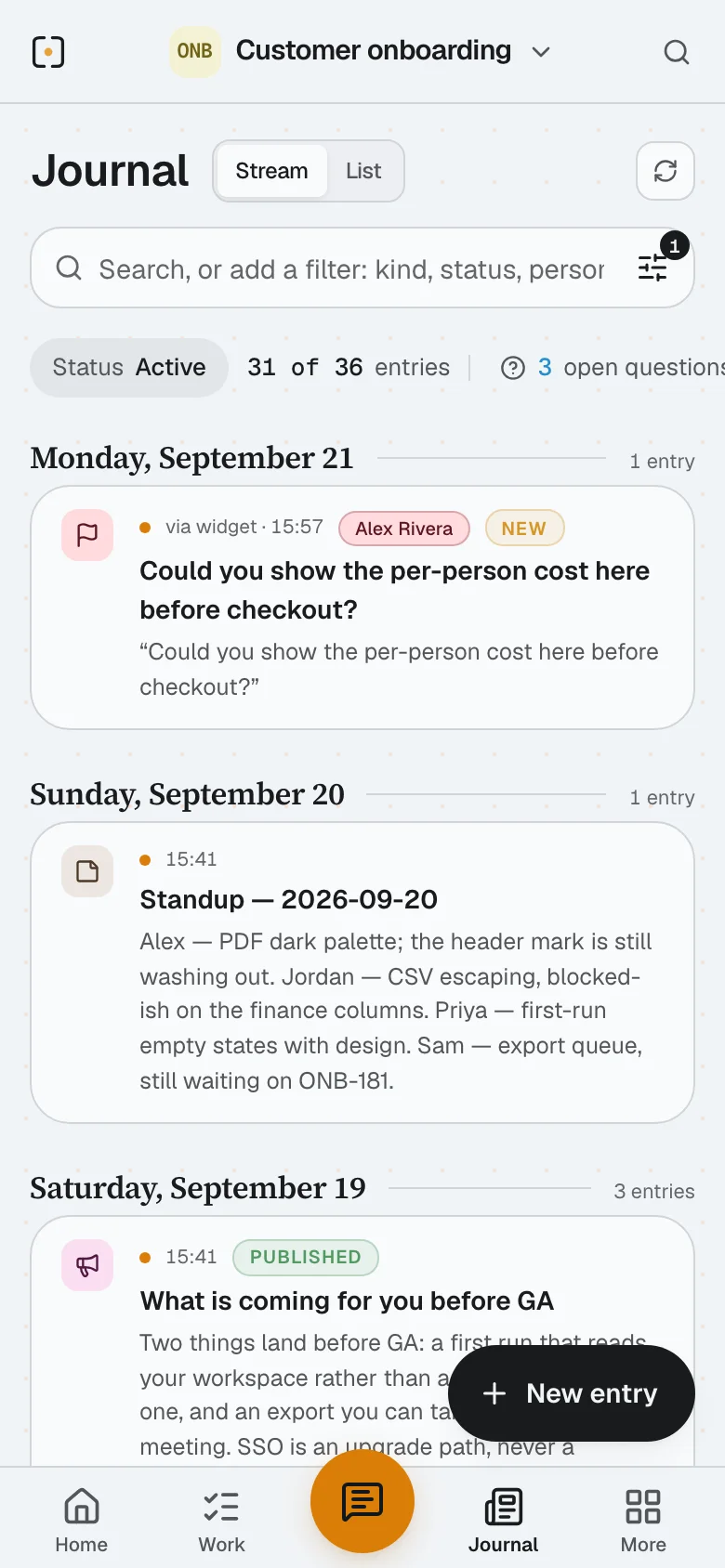
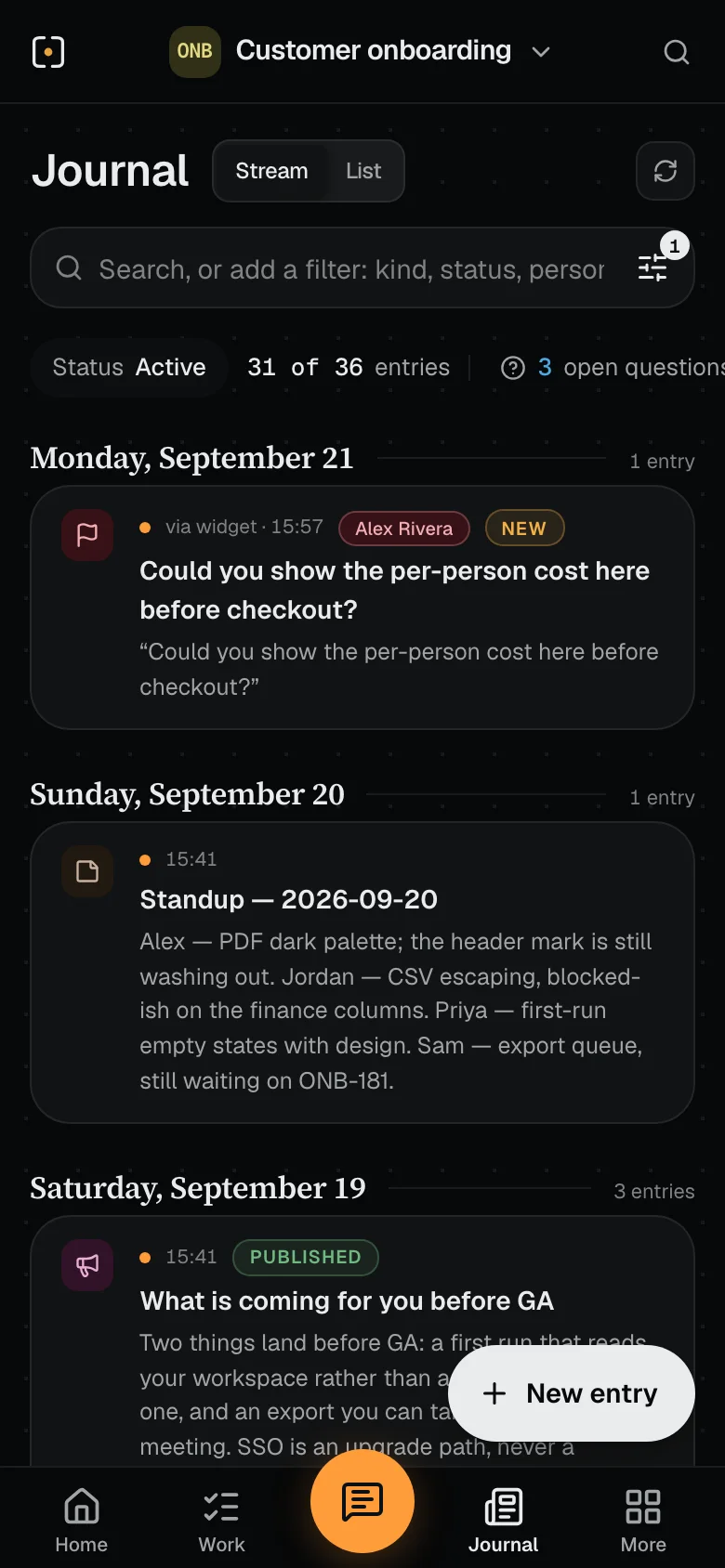
Keep’s Journal on a phone in a sample workspace: the stream grouped by day, with feedback sent from a website about the per-person cost, a standup note, and a published update about what lands before GA.
Journal
Check what needs you

Your queue, the hours you have logged and the approvals waiting, without opening a laptop.

Move the work along

Open a card, change its state, leave a reply or log the time you just spent.

Read what changed

The journal in one column: decisions, updates, questions and feedback as they land.

See the phone view in the product tour

JUST ASK · WITHOUT OPENING KEEP

Almost anything you do in Keep,
you can do by asking.

Not only questions. File an idea, log a bug, open a task, see where someone’s hours went, share a document. Almost anything you do in Keep, you can do by asking the assistant you already talk to.

ASK YOUR CONNECTED AGENTAsk your agent: Show me the plan for this week. Save this decision to the project. What needs my attention today?

Capture it

An idea becomes a requirement.

  • I have an idea — let customers export the per-person cost before checkout.Opens a requirement in the project
  • Log a bug: the export drops the last column.A bug, on the requirement it belongs to
  • Create a task for Priya to review the invite flow, due Friday.A task with an owner and a date

Catch up

An update, without chasing anyone.

  • How is Customer onboarding going this week?Reads the cycle and the records in it
  • What did Alex work on yesterday?Recent activity, by person
  • What shipped in the last release?The release cycle and its notes

Account for time

How long it took, and who worked on it.

  • How long did ONB-180 take?Time entries on one task
  • How much time did Jordan log on the export work?Time by person
  • Log 45 minutes on ONB-126.An entry against your own week

Find and share

Open it, or share it on a link.

  • Open the export spec.Reads the artifact and its version
  • Share the project report as a link that expires Friday.A share link with an expiry
  • Post an update: the pilot is ready for review.An update the team can read

Example requests. A few owner-only actions stay in the app — creating a project, or emptying the recycle bin.

Connect your AI tools
Example conversation Where things stand
You

Where is Customer onboarding this week, and who has been on the export?

Your assistant

Sprint 2 — activation polish. Thirteen cards in view: three in review, two done, four of them blocked.

Two need someone: ONB-131, self-serve billing, waiting on the Stripe webhook and two days late. ONB-182, the export job queue, blocked and due Sep 30.

ONB-180, render the report as PDF, has eleven hours logged so far — the last two by Alex Rivera.

Read from the project’s own records, not from a summary someone wrote
Example conversation An idea, then the work
You

Idea: let customers export the per-person cost before checkout. File it for Customer onboarding.

Your assistant

Filed in Customer onboarding as a requirement. It is open, and it is waiting for you there.

ONB-188Open

Show the per-person cost before checkout.

Created via agent · just nowRequirement · v1

Then: Create a task for it, for Priya.

ONB-189Open

Add the per-person cost to the export

Created via agent · just nowTask · Linked to ONB-188

How it works. Your assistant connects to Keep over MCP: you sign in once, approve the connection, and from then on it acts as you, inside your own permissions. Set it up in Claude, ChatGPT and Gemini CLI, and in other assistants that support remote MCP connectors. Availability can depend on your client version and your team’s settings.

See the details in the product tour

IT ALL COMES TOGETHER HERE

Every thread.
The whole picture.

The artifact behind the plan. The task behind the update. The feedback behind the fix. Follow the connections and see the story of your project.

Artifacts→Plan→Work→Journal→Reports
Read the walkthrough

The Customer onboarding thread wall, with curved connections between stacked requirements, tasks, feedback and artifacts.

  1. See the project’s threads together, grouped into cycles.
  2. Open the PDF export task without losing its connections.
  3. Explore the stack of artifacts behind the work.

Recorded in Keep with sample data. Silent video.

You don’t have to open Keep to move work forward. Ask your connected agent to pick up a task, record a decision or save a document to the project.

Take the full product tour
A FEW THINGS YOU MIGHT BE WONDERING

Before you make
yourself at home.

Start simply. Bring the rest of your work with you.

Who is Keep for?

Teams delivering a product, a project or client work—with people, AI agents, or both. Keep gives the plan, day-to-day work and decisions a shared home.

Explore the workspace

Do I have to keep another app open?

You can plan, update work and save documents through a connected AI client. Open Keep when you want the board, the wider picture or a conversation with your team.

Connect your AI tools

Can we start with just tasks?

Yes. Start with tasks, owners and progress. Bring in requirements, modules and cycles when the project needs a more structured plan.

See your ways of working

Does Keep work on a phone?

Yes. Keep’s screens are built for a phone, not shrunk onto one: the same workspace you open in a browser, laid out for one thumb. Check your queue, move a card, read what changed, reply and log time. There is no separate app to install.

See Keep on a phone

Can I run my project from my AI assistant?

Mostly, yes. A connected assistant can read the project and write to it: file an idea or a requirement, log a bug, open a task, publish an update, check where someone’s hours went, log time, and read or share a document. It acts as you, within your permissions, and a few owner-only actions stay in the app.

See what you can ask for

Can I use Keep for documents on their own?

Yes. Artifacts can live independently in Docs or inside a project. Write documents, upload files, organize collections and share links with optional passwords and expiry.

Explore documents and sharing

Can customers give feedback without an account?

Yes. Add the Feedback Agent widget to your website. Visitors can point to an element, annotate a screenshot and send feedback without a Keep login, then revisit their submissions in the same browser.

See the feedback flow

How do we get started?

Keep is in private beta. Use Get started to sign in to an existing workspace or request access for your team. We’ll help you choose a first project and connect your tools.

Sign in or request access
PRIVATE BETA · BY INVITATION

Bring a real project.

Bring your team and your AI agents into one shared workspace. Sign in to your workspace or request access.