







Plan
Define what to deliver and when.
Requirements define the scope. Modules group the parts of your product. Cycles set the delivery window.
See how planning works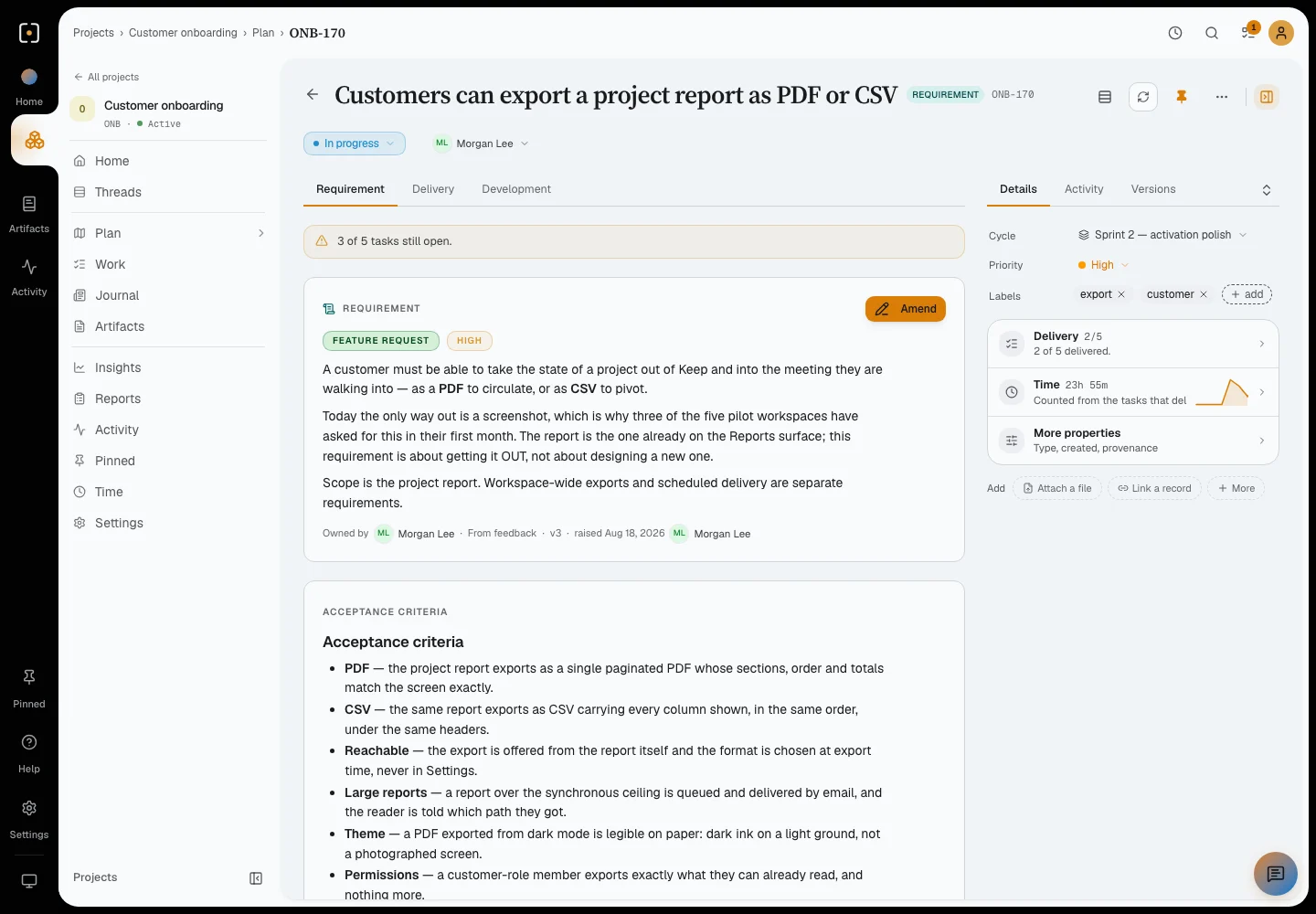
Private beta · For teams delivering software
Requirements, tasks, documents and feedback in one project, shared by your team and the AI tools you already use.
Works with the coding agents and AI assistants your team already uses.
Home
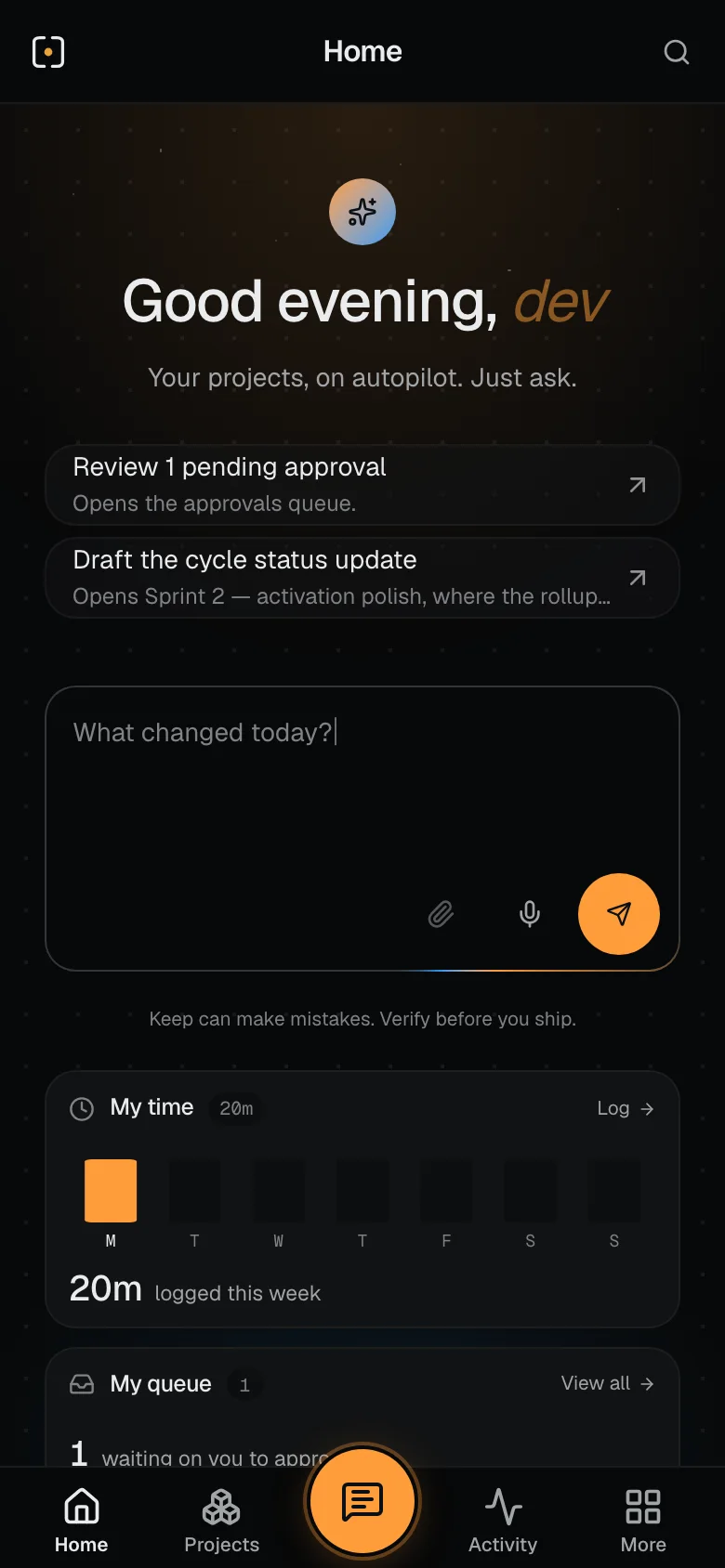
Home shows your logged time, today’s work and the Queue of what waits for your decision, with a direct link into each project.
Plan
Requirements define the scope. Modules group the parts of your product. Cycles set the delivery window.
See how planning worksWork
Tasks, bugs and chores, each with an owner, a status and progress. View them as a list, a board or a timeline.
Explore the work views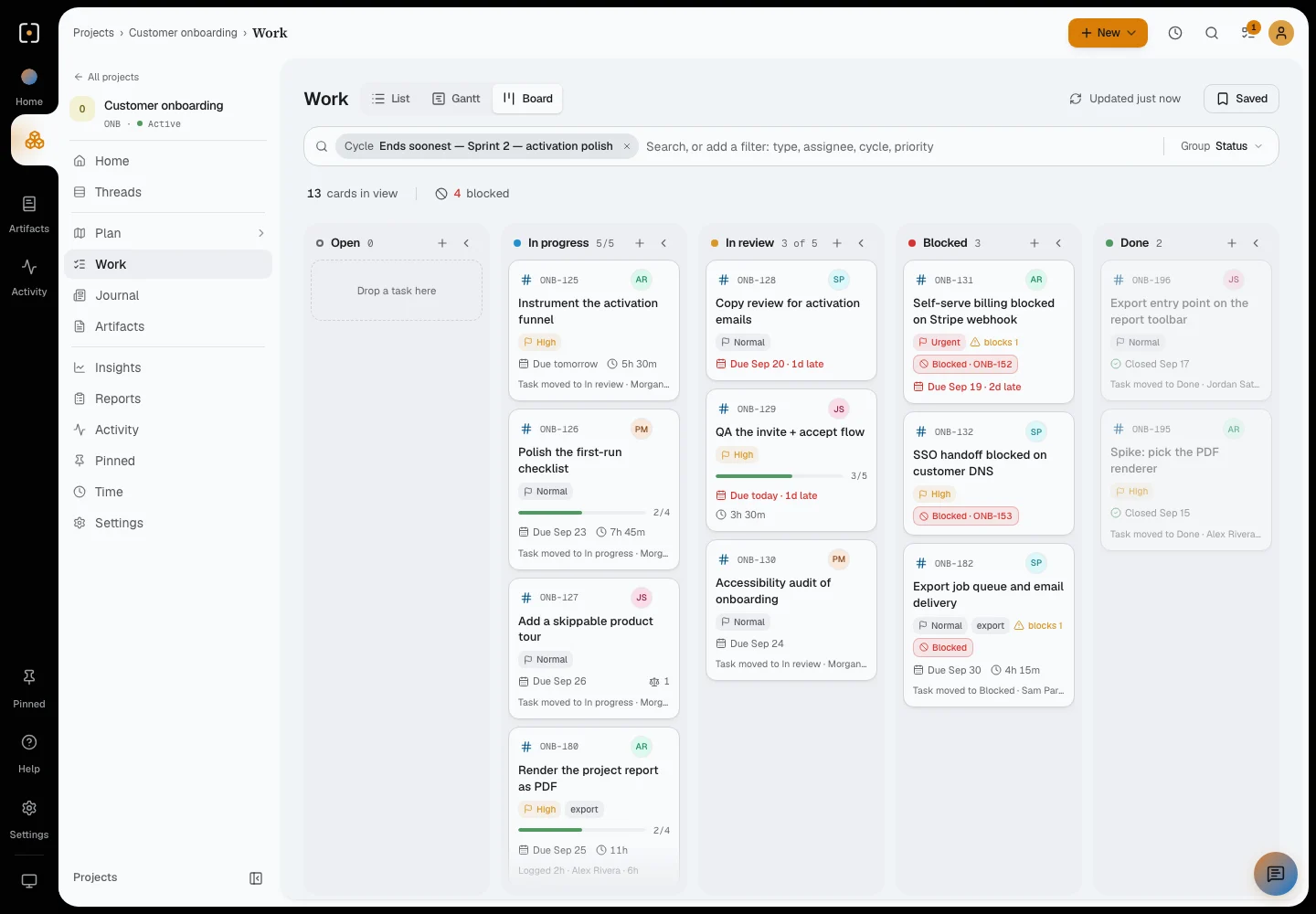
Journal
Notes, updates, feedback, questions, risks and meeting outcomes, linked to the tasks and requirements they concern.
Explore Journal and feedback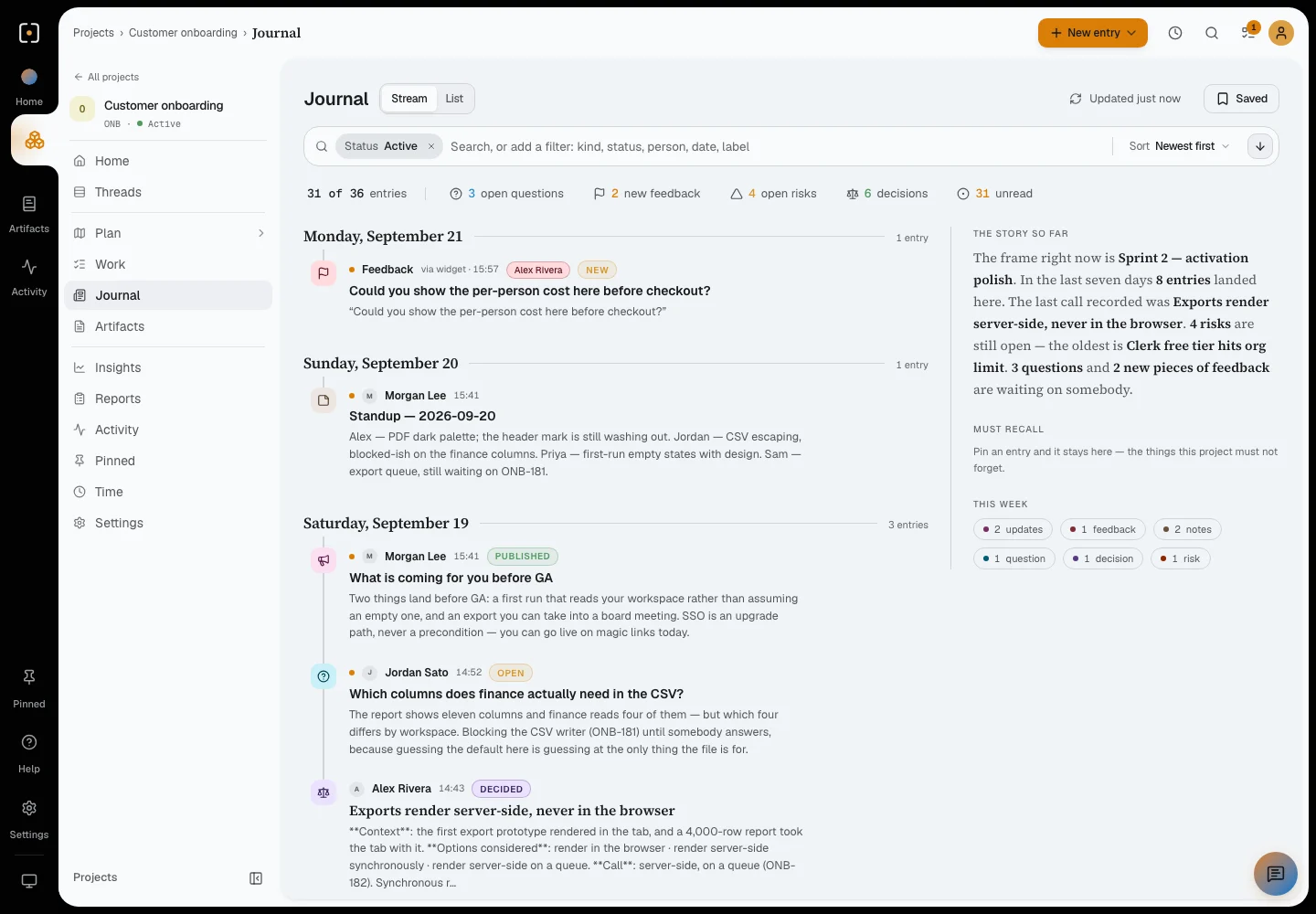
Artifacts
Documents, files, links and embeds, with versions, collections and sharing.
Explore artifacts and sharing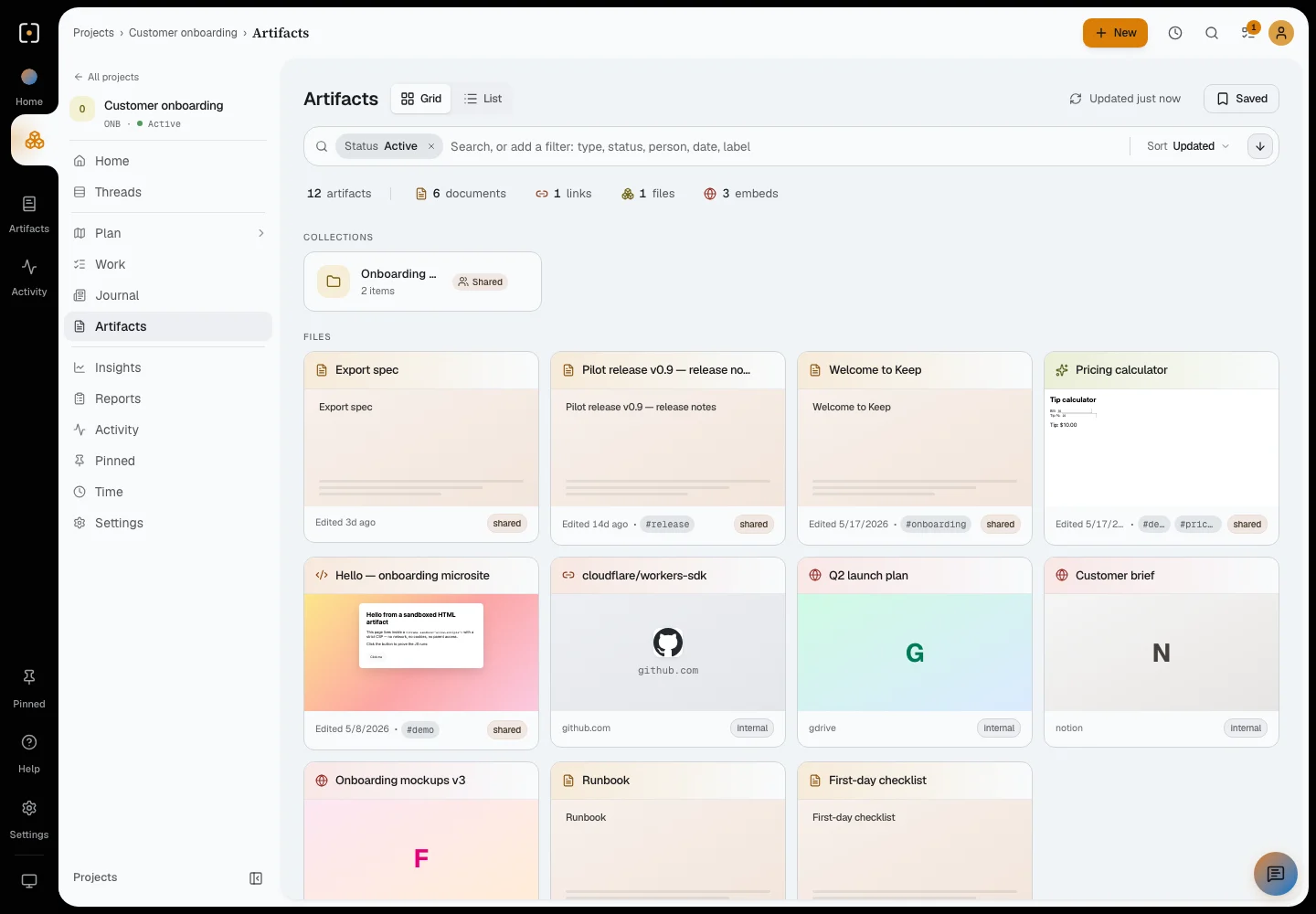
A connected assistant can create a task, record a decision or save a document to the project, without opening Keep.
Idea: let customers export the per-person cost before checkout. File it for Customer onboarding.
ONB-188OpenShow the per-person cost before checkout.
ONB-189OpenAdd the per-person cost to the export
ONB-189In progressWorking on ONB-189
a41c9e2 illustrativeUpdatePublishedThe pilot is ready for review.
ONB-189In reviewReviewed by the teamTell the assistant you already use: let customers export the per-person cost before checkout.
Filed in Customer onboarding as an open requirement, ready for review.
A task for Priya, linked to the requirement it delivers.
Your agent picks up the task and records the handoff. The team sees what changed without opening Keep.
An update is posted: the pilot is ready for review, with the requirement and the task linked.
Connect once
Sign in once
Your assistant connects to Keep over MCP.
Approve the connection
From then on, your assistant is connected.
It acts as you
Inside your own permissions.
Where is Customer onboarding this week, and who has been on the export?
Sprint 2, activation polish. Thirteen cards in view: three in review, two done, four of them blocked.
Two need someone:
ONB-180, render the report as PDF: eleven hours logged so far, the last two by Alex Rivera.
Read from the project’s own records, not from a summary someone wrote
Setup guides
Availability can depend on your client version and your team’s settings.
Example requests. A few owner-only actions stay in the app, like creating a project or emptying the recycle bin.
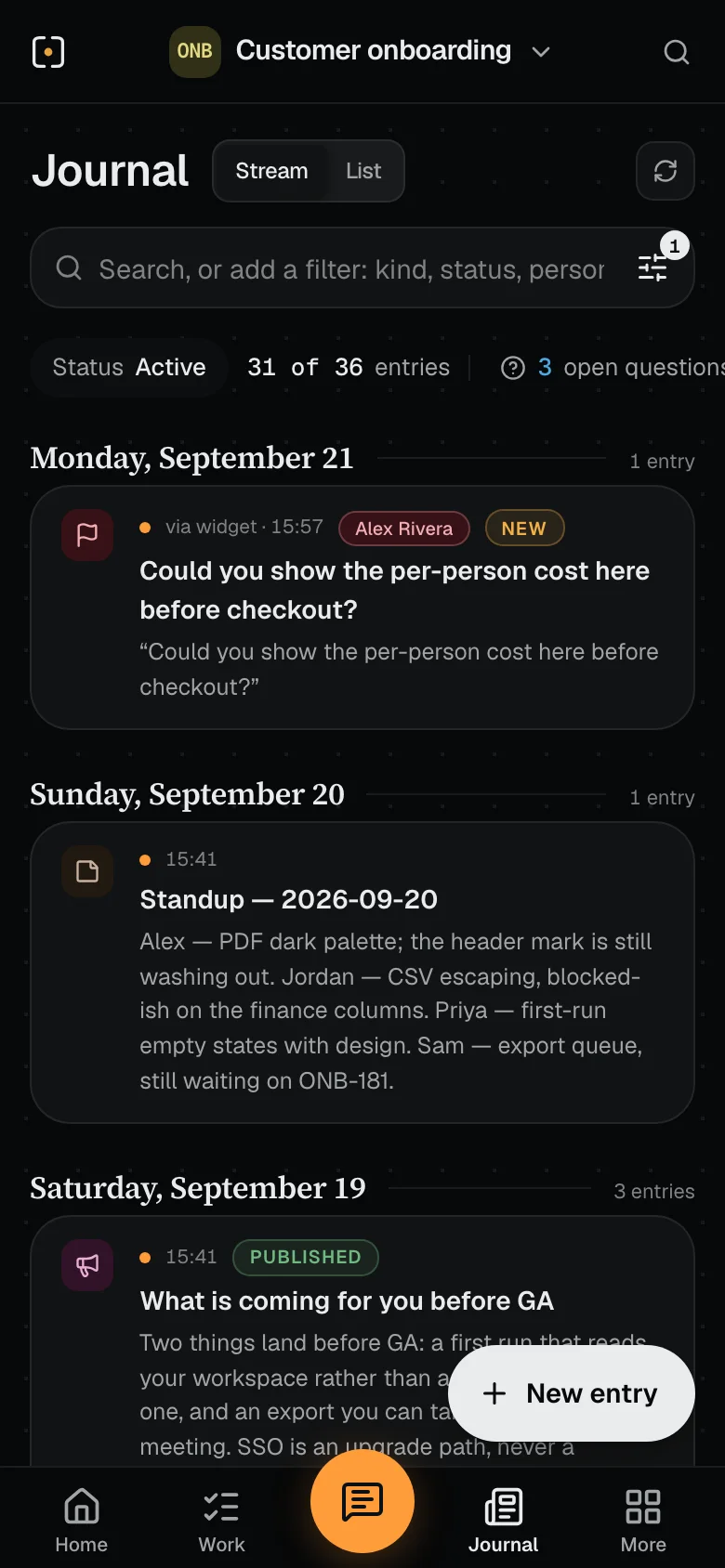
Mobile
The same projects and records as in the browser, with a layout built for one-handed use.
See the phone view in the product tour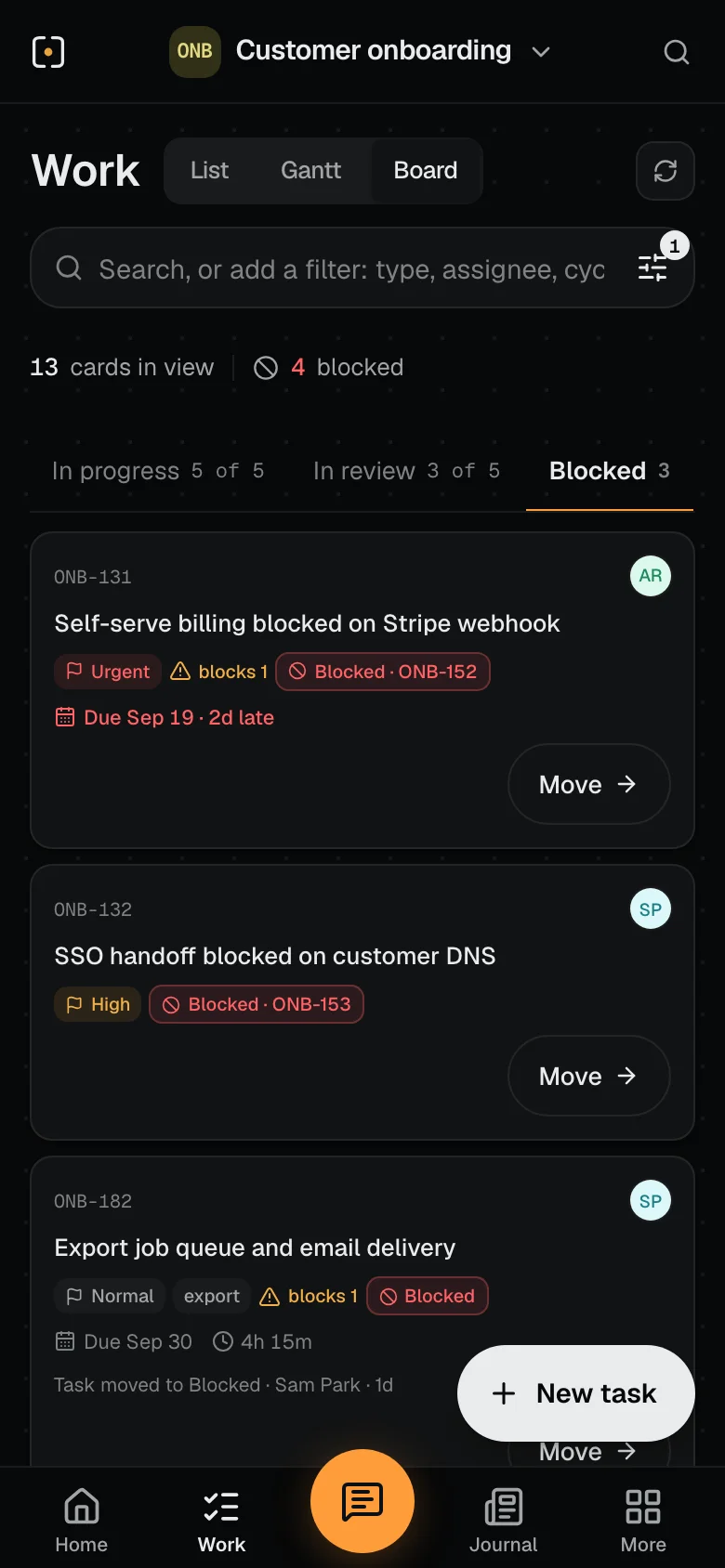
The decisions and questions waiting for you, and the hours you have logged.
Change a card’s status, reply or log time.
Decisions, updates, questions and feedback, grouped by day.
Artifacts, requirements, tasks, updates and feedback link to the records they relate to. The thread wall shows those links across the project.
The Customer onboarding thread wall, with curved connections between stacked requirements, tasks, feedback and artifacts.
Recorded in Keep with sample data. Silent video.
Explore Keep’s dedicated tenancy, data isolation, security controls and Cloudflare foundation.
Explore Trust & securityWho Keep is for, how it works with your tools and how to get started.
Teams delivering a product, a project or client work—with people, AI agents, or both. Keep gives the plan, day-to-day work and decisions a shared home.
Explore the workspaceYou can plan, update work and save documents through a connected AI client. Open Keep when you want the board, the wider picture or a conversation with your team.
Connect your AI toolsYes. Start with tasks, owners and progress. Bring in requirements, modules and cycles when the project needs a more structured plan.
See your ways of workingYes. Keep’s screens are designed for phones: the same workspace you open in a browser, laid out for one-handed use. Check your queue, move a card, read what changed, reply and log time. There is no separate app to install.
See Keep on a phoneMostly, yes. A connected assistant can read the project and write to it: file an idea or a requirement, log a bug, open a task, publish an update, check where someone’s hours went, log time, and read or share a document. It acts as you, within your permissions, and a few owner-only actions stay in the app.
See what you can ask forYes. Artifacts can live independently in Docs or inside a project. Write documents, upload files, organize collections and share links with optional passwords and expiry.
Explore documents and sharingYes. Add the Feedback Agent widget to your website. Visitors can point to an element, annotate a screenshot and send feedback without a Keep login, then revisit their submissions in the same browser.
See the feedback flowKeep is in private beta. Use Get started to sign in to an existing workspace or request access for your team. We’ll help you choose a first project and connect your tools.
Sign in or request accessPrivate beta · by invitation
Bring your team and your AI agents into one shared workspace. Sign in to your workspace or request access.

